A keypad built for work - not for show.
Nine keys on your desk. One press runs a whole routine - apps, clicks, automations. Switch work modes, see your active setup on the pad, and grow into visual workflows when simple shortcuts aren't enough.
Set up in the app - or, if you use an AI assistant, let it wire the key for you.
Keypad Versions
KeyPad Classic
Perfect for your desk setup. Switch between 10 different modes with a simple turn.
KeyPad Mini
Take your shortcuts anywhere. Compact design that fits in your bag.
KeyPad Classic
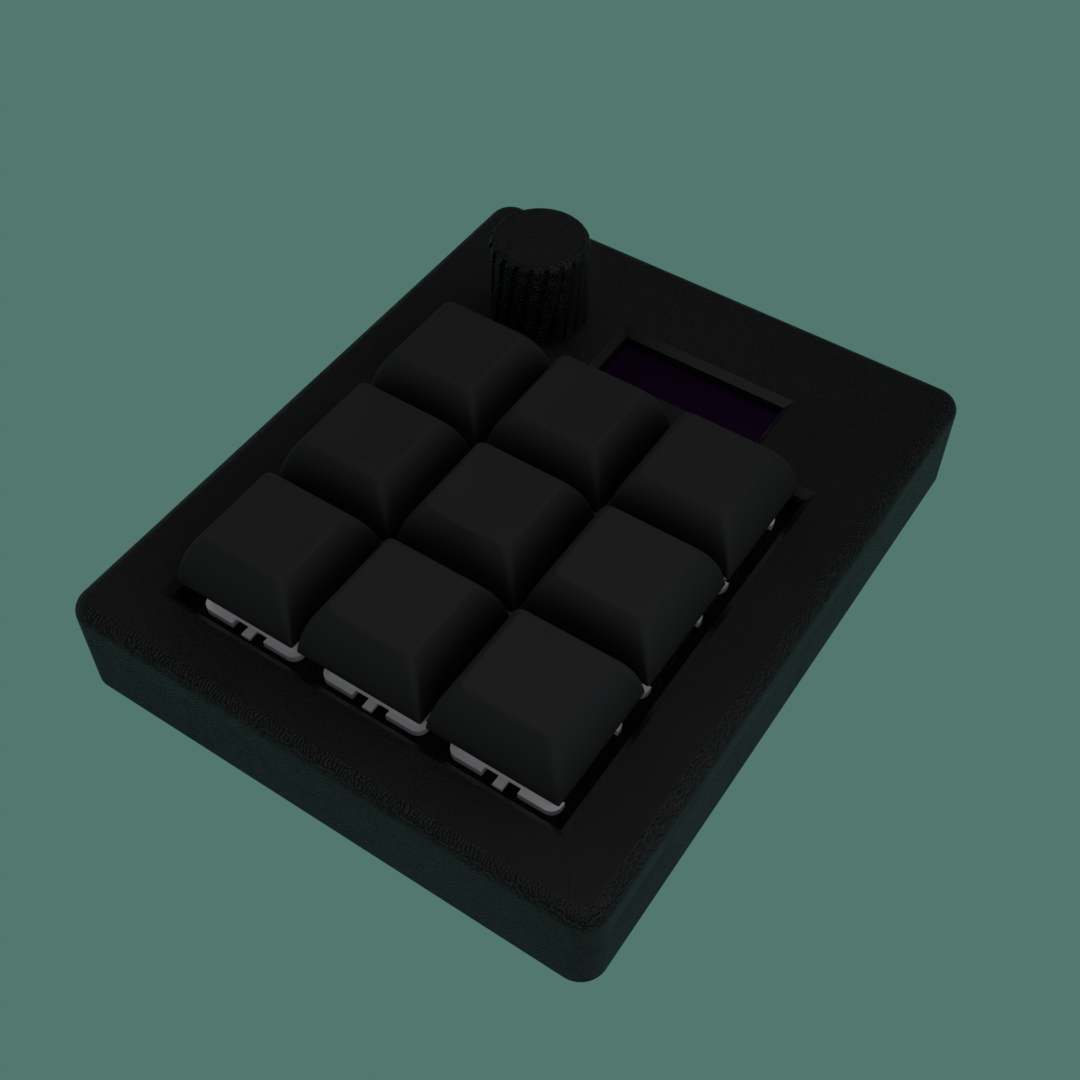
The perfect companion for your desk. Switch between different work modes instantly and keep your workflow organized.
What you get:
- 9 buttons to launch apps, open folders, run shortcuts or macros
- Easy switching between 10 different modes
- Clear display to see your current mode
- Simple plug-and-play setup
KeyPad Mini
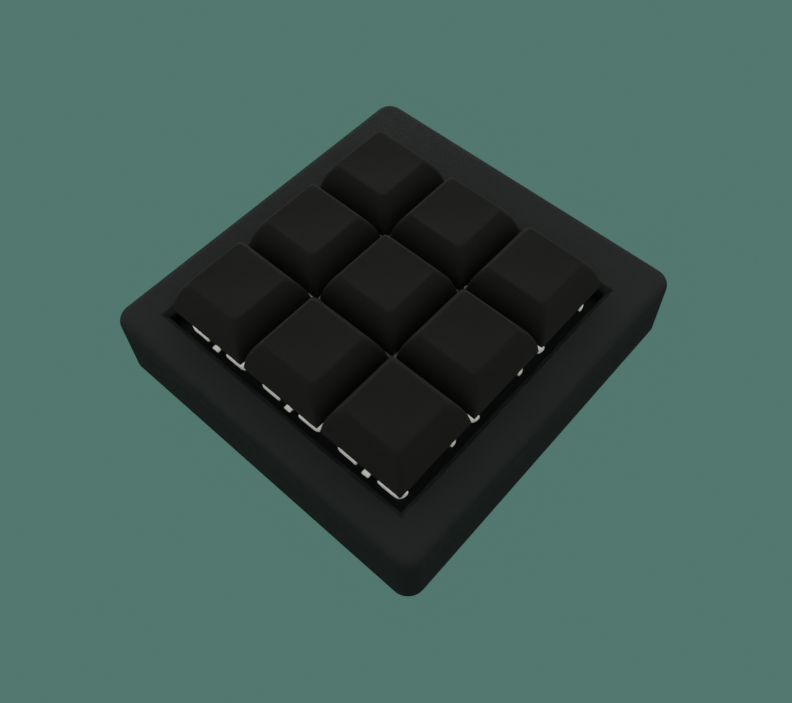
Take your shortcuts with you wherever you go. Perfect for working from different locations or traveling.
What you get:
- 9 buttons to launch apps, open folders, run shortcuts or macros
- Compact design that fits anywhere
- Simple plug-and-play setup
- Perfect for on-the-go productivity
Speed up your day with a handy keypad that you can customize however you like
10×9 Presets
10 presets with 9 customizable keys each. Switch between different setups instantly.
Shortcuts & Apps
Launch apps, open folders, or run your favorite shortcuts with a single press.
AI Assistant Skills
Official skill files teach Claude, Cursor, and other AI tools to build macros for your keypad.
Macro Builder
Drag & drop blocks to create complex macros with clicks, waits, and logic.
Templates & Nesting
Save, reuse, and share templates with nested functionality for complex workflows.
Scripts Execution
Trigger scripts from a key press; Key Pad runs them on your PC and shows status in the system tray.
Custom Icons
Create your own 16×16 pixel icons in the built-in icon editor for personalization.
Hardware Sync
Seamless serial communication for real-time synchronization with your keypad.
Everything is just a click away - simple, quick, and designed for your style and flow!
Set up your own shortcuts and glide through your tasks - no tech skills required!
Each type of keypad has its strengths - SinTuch combines the best of both worlds.
| Feature | Software-based | Firmware-based | SinTuch (Hybrid) |
|---|---|---|---|
| Shortcut method | Software-simulated | True HID | True HID |
| Mouse actions | Limited control | Basic control | Full control |
| Logic macros | None | Manual setup | Drag & drop builder |
| Platform | Windows/macOS | Universal | Windows now, macOS/Linux next |
| Setup | Plug & play | Flash firmware | Plug & play |
| Focused design | Flashy | Simple | Distraction-free |
| AI-assisted setup | No | No | Optional - compatible AI assistants |
SinTuch bridges the gap - hardware precision meets software intelligence.
Join WaitlistAI Assistant Skills - AI-ready, not AI inside
SinTuch does not run AI on the keypad or in the app. Instead, we publish official Agent Skill files - structured instructions that compatible AI assistants use to build macros for your device.
Describe a workflow in plain language and say where you want it on your keypad. Your AI assistant reads the SinTuch skill, creates the macro, and sets it up for you - no manual block-by-block setup required.
Works with Claude Skills, Cursor Agent Skills, and any assistant that supports skill files. The intelligence stays in your AI tool - the keypad stays a precise HID macro device.
View skill files →Add SKILL.md and examples.md to your assistant's skills folder.
“For preset 1 and button 4, open Today's folder and snap Explorer to the top-left.” Your assistant creates the macro and assigns it where you asked.
Macro Builder - Drag & Drop Blocks
Create complex automation workflows with our intuitive drag-and-drop macro builder. Combine different block types to build powerful sequences that can handle any task.
Templates & Nesting - Save, Reuse, Share
Create reusable templates that can contain nested macros and complex workflows. Save and organize your templates for personal use and easy access.
Scripts Execution - Python & Beyond
Press a keypad button to run scripts on your computer through Sintuch app. Support for Python and other scripting languages. Monitor running scripts through the system tray with simple controls.
| Running scripts: 3 |
| Stop all scripts |
Early access for SinTuch KeyPad
One press runs a whole routine - apps, macros, scripts.
Expected Kickstarter price
€129
Expected regular price €149
SinTuch is planned for Kickstarter. The launch date isn't set yet.
Join Early Access and you'll:
- Get notified when the Kickstarter opens (date not set yet)
- Early-bird access aimed at the expected €129 price
- Occasional product updates - no spam
Bonus: a handwritten thank-you card with your first order.